APK not installed on Android: how to investigate the cause
Investigate APK installation failures using the error, APK or XAPK format, free space and update conflicts. Follow the relevant checks before deleting data.
Start with the stage that failed
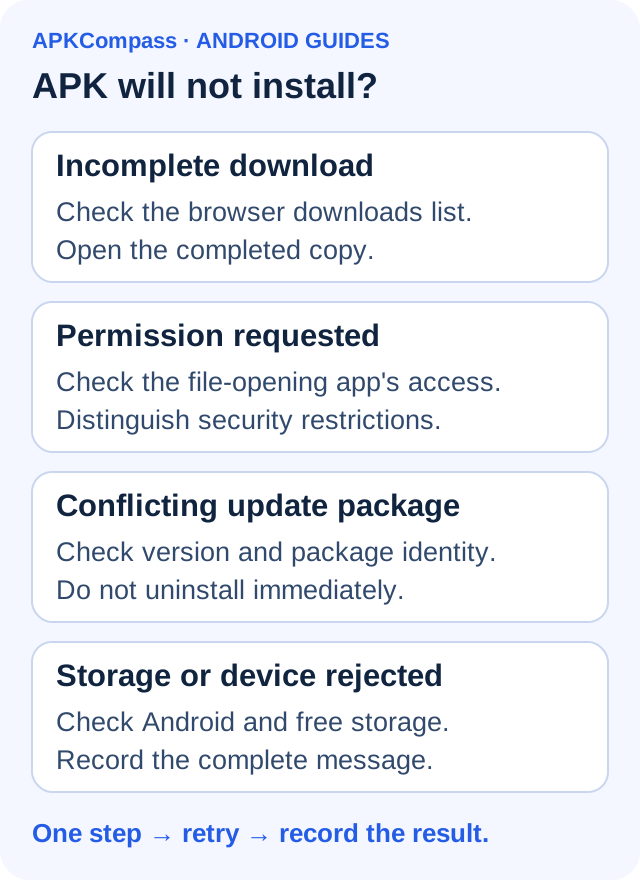
An APK that will not install is not necessarily damaged. Separate three situations: an incomplete download, Android rejecting installation, or an installed app that will not open. This guide covers the first two. If the app icon exists and a game stops at login, use that game's troubleshooting guide.
Record the exact error shown. A general message such as App not installed does not identify one definite cause. Avoid changing several settings together: choose the relevant check, retry once, then record whether the message or failing stage changes.
Match the version and format on the APK page
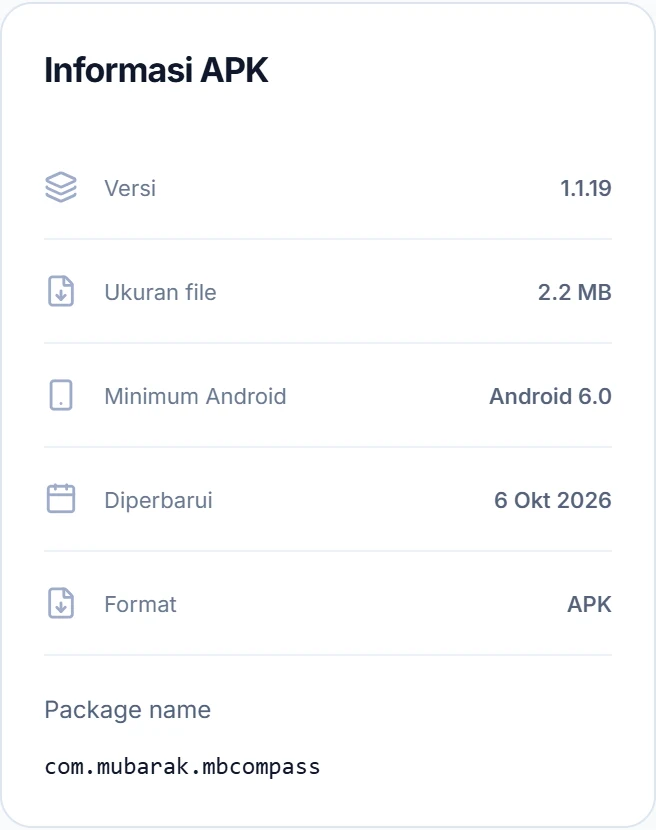
Return to the page for the app you downloaded. In APK information, check Version, File size, Minimum Android, Format and Package name. On mobile, this panel is below the description. Package names help distinguish similarly named apps.
Check the format before opening the file. A standalone APK and an XAPK do not use the same installation process. XAPKs can contain multiple package parts or extra data; renaming .xapk to .apk does not change their contents. Follow the XAPK instructions on the download page. Do not extract one APK and assume the package is complete.
The numbers in the screenshot below are examples. Use the live app page for the file you are checking, including when the catalog has received a newer version.
To install an XAPK, use VInstall: install the installer's APK first, then use Normal mode → Select File → Install for your completed XAPK download. Do not rename its extension to .apk. Full steps and compatibility limits.
If the download is incomplete or the file will not open
First check for a completed status in the browser's downloads list. A download button or an open preparation page does not prove that the complete file was saved. Browsers and catalogs may round sizes differently; a small difference does not establish corruption.
- Open Downloads in the browser you used. Find the filename and check whether it is complete, paused or failed.
- If it failed, return to the same APK page and download again over a stable connection. Wait for completion before opening it.
- Select the newly completed copy from the browser list. Make sure you are not opening an older attempt.
- If the new copy fails at the same stage, save the error and continue to the next check. Repeating downloads without new information only uses data.
If Android asks for permission to install apps
Installation permission applies to the app opening the file, such as a browser or file manager. On Pixel, go to Settings → Apps → Special app access → Install unknown apps, choose the app and review Allow from this source. Other brands may use different menu names or locations.
Distinguish this permission from a harmful-app warning, administrator restriction or developer verification. If the message mentions one of those restrictions, follow the device explanation or contact its administrator. Do not disable Play Protect for a general installation error. After installation, you can turn the browser's installation permission off again.
If storage is low or the device is incompatible
Open Settings → About phone to check Android's version, then compare it with Minimum Android in the catalog. Downloading the same file again will not resolve an older system version. An unavailable minimum requirement means the check is incomplete, not that every device is supported.
Check Settings → Storage. Installation and app data may need more space than the downloaded file; no single free-space figure fits every APK. Move personal files that have been backed up or remove old downloads you no longer need, then check the available space again.
If Android still reports an incompatible package despite meeting the system minimum, record your phone model and the complete message. Support can also depend on architecture or hardware features. Stop trying random files that merely share a similar name.
If an older version is already installed
A conflicting-package or incompatible-update message requires checking the installed app. Android uses package identity and signing certificates for updates; the display name alone is insufficient. An older version may also be rejected as an update.
Record the installed version and where you obtained it. Do not immediately uninstall: data stored only on the phone could be lost. Confirm account access or a backup, then use the related APK update guide below. Report unclear file identity or compatibility before replacing the existing installation.
Send a report that can be investigated
On the same APK page, find Report a problem near APK information. Reporting there helps the team identify the file. Include the following details, replacing the bracketed parts:
Model: [phone]. Android: [version]. File: [name, version, APK/XAPK]. Installation: [new/update from which version]. Failing stage: [download/open file/install]. Complete message: [error text]. Attempts: [steps and results].
Do not include passwords, OTP codes or private account data. If login fails only after successful installation, describe it as an app-use problem so the investigation does not focus solely on the download.