
Use Google Photos Free up space after checking backups
Free up space removes eligible local copies after backup; it is different from casually deleting images from the library.
Before you begin
Free up space removes eligible local copies after backup; it is different from casually deleting images from the library. Confirm the backup account and completion status first, then consider which photos you may need without a connection.
Follow these steps
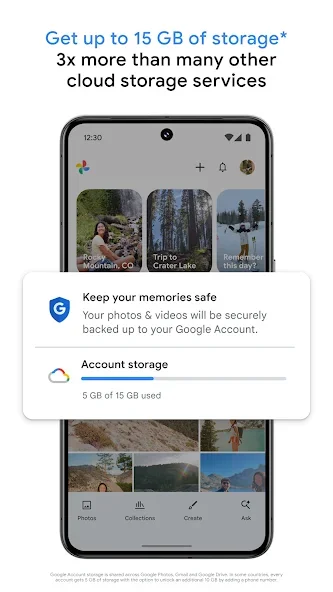
Check the profile picture and account address in Google Photos before changing backup or sharing albums. Photos shown in the app may come from the device or the account. Understand where they are stored before deleting or moving important files.
- Open Google Photos and verify the intended account. Check Backup status and resolve pending uploads or storage problems before attempting to reclaim local space.
- Review important items and confirm they are accessible from the backed-up account. Keep independent copies of files that you cannot afford to lose.
- Open the profile menu and find Free up space. Read the explanation and the amount of storage shown before confirming removal of eligible device copies.
- Inspect the resulting local storage usage and open a few backed-up items. Remember that viewing media whose local copy was removed may require a connection.
Check the result
Do not substitute the normal Delete action for Free up space without reading its consequences. If you need photos offline, prepare them before travel. Check backup results again before resetting the phone or removing an account.
Google account storage and device space are different. Backups can stop when account storage is full or the connection fails. Do not delete photos to experiment with settings before checking that you can reopen their saved copies.