
Split a video clip in CapCut without losing the sequence
Splitting separates one clip into sections you can edit independently.
Apps and games in this article
Check the version, file format and installation steps before downloading.
 CapCutAPK · v19.7.0 · 306.6 MBView details and downloads →
Before you begin
Splitting separates one clip into sections you can edit independently. Decide which moment needs a cut before removing footage, and keep the original recording available if you later need to rebuild the edit.
App screenshots
Follow these steps
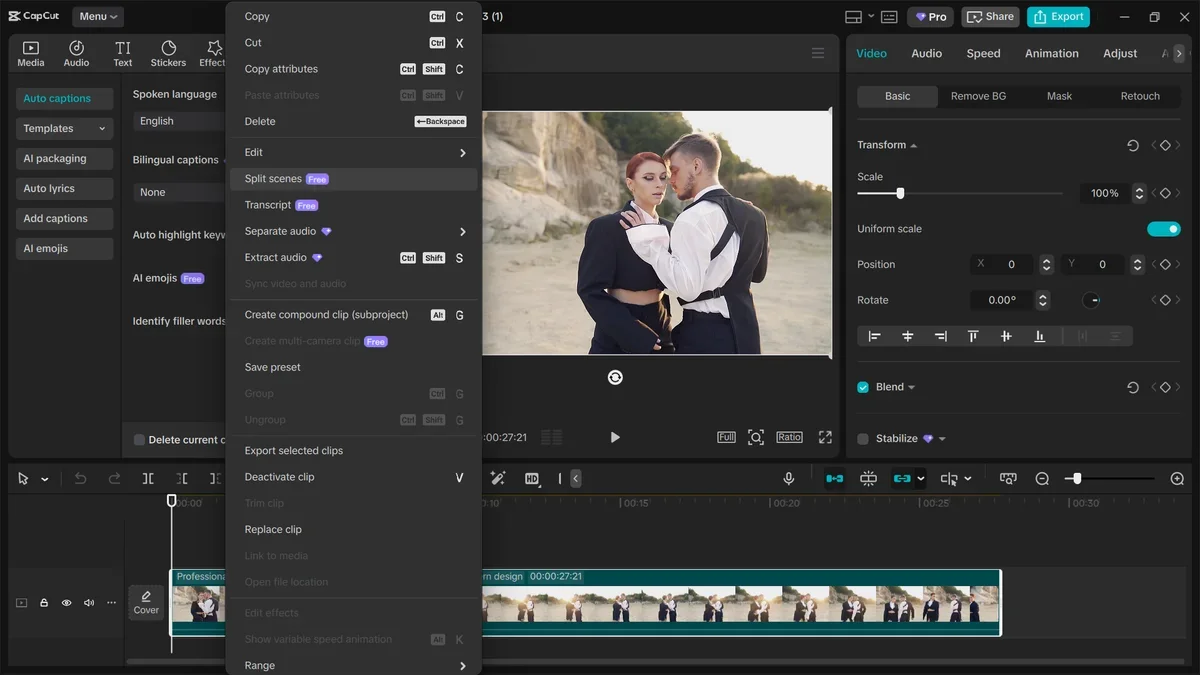
Use a new CapCut project with footage you own. Grant access only to the media needed and keep the original video. Select a clip on the timeline to see which tools apply to it before editing.
- Open the CapCut project and select the correct clip in the timeline. Play it to identify the exact point where the next section should begin.
- Move the playhead to that point and use Split. Zoom the timeline if necessary so the cut falls between the intended frames rather than inside a word.
- Select the resulting sections individually. Remove or adjust only the section you intended, watching for unintended gaps and changes to the audio track.
- Play across the cut at normal speed. Check that movement, speech and any captions still follow a clear sequence before exporting the result.
Check the result
A cut that looks correct on a paused frame may sound abrupt in playback. Review the exported file as well as the timeline. Keep the project if you need to change the timing without starting over.
Some CapCut features or assets may require an account, connection or paid plan. Check pricing indicators before exporting. A higher output resolution does not automatically add detail missing from the original recording.