
Set Google Drive sharing permissions for a file
Choose the minimum access people need when sharing a file. Follow the preparation, steps and checks in this Android guide.
Before you begin
Choose the minimum access people need when sharing a file. Someone who only needs to read a document should not automatically receive editing access. Check the active Google account and the exact file before changing permissions.
Follow these steps
Check the Google Drive account and destination folder before saving or sharing files. Give documents distinctive names, such as document type and activity date. Open the saved result to confirm it is the version you need.
- Find the file in Google Drive and open its sharing controls. Inspect the name and location so you do not change a similarly named document by mistake.
- Add the intended person or review existing access. Choose an appropriate role and check the address carefully before sending an invitation.
- Review general or link access separately from named recipients. Read who can open the link rather than assuming that possession of the link has one fixed meaning.
- Save the setting and test access with the intended recipient where practical. Revisit permissions after the task is finished, particularly when editing access is no longer needed.
Check the result
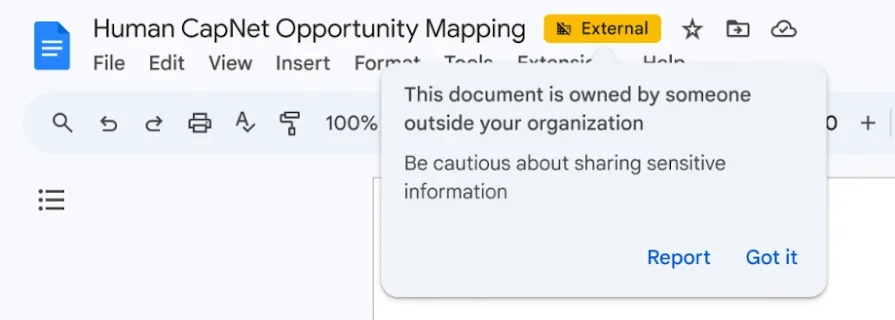
Removing access later does not undo information someone already copied. Avoid broad link sharing for private documents. Organizational accounts can impose additional restrictions, so follow the controls shown for the account that owns the file.
File access depends on the owner's permissions, active account and any organization policy for work or school accounts. Saving a link does not automatically grant access. Check the recipient's access before relying on a document for an important activity.