
Set a Gmail vacation reply before taking time off
An automatic reply tells senders when their message may be handled. State your return date and include an alternative contact only with that person's agreement. A short practical explanation is usually more…
Before you begin
An automatic reply tells senders when their message may be handled. State your return date and include an alternative contact only with that person's agreement. A short practical explanation is usually more helpful than describing your private travel plans.
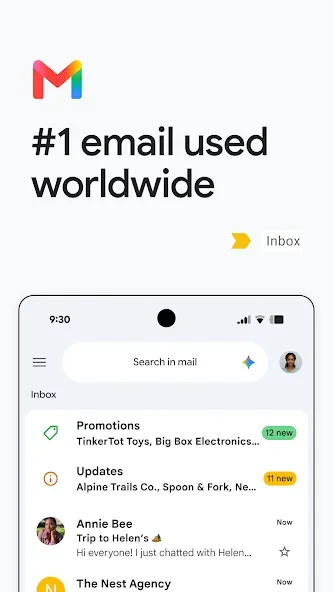
Check the profile picture in Gmail to confirm the active account. Work and personal accounts can hold different messages and settings. Start with one message you recognize before applying a change to many emails. For work correspondence, inspect recipients, attachments and the conversation context so that organizing the inbox does not disrupt communication you still need.
Follow these steps
Follow this sequence in the Android app.
- Open Gmail's menu, go to Settings and select the account used for work. Find Vacation responder so the change applies to the intended mailbox rather than another account on the phone.
- Enable the responder and enter its date range, subject and message. Explain when you can respond again without promising a response time that you may be unable to meet.
- Review the option to reply only to contacts, if that matches your needs. This affects who receives the notice and should be checked before you leave work for the break.
- Save with Done and reopen the settings to confirm the dates and wording. If you return earlier than expected, turn off the responder so senders do not receive an outdated explanation.
Check the result
The reply normally goes out on the first contact rather than for every message from the same person. Messages in Spam and messages sent through subscribed mailing lists do not receive it. Do not treat the responder as proof that every sender has been notified.