
Find text and check a PDF's location in Files by Google
Text search makes a long PDF easier to inspect than scrolling through every page. Also check the file location so you do not use an older copy. This is useful for locating a number, section name or particular…
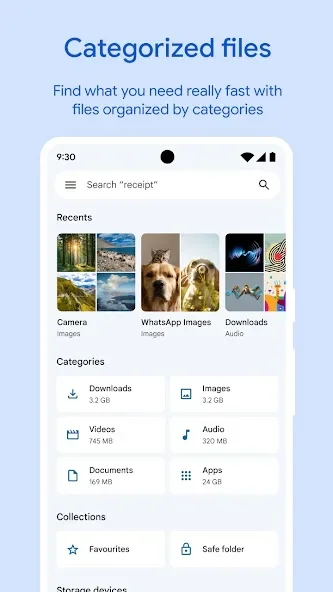
Before you begin
Text search makes a long PDF easier to inspect than scrolling through every page. Also check the file location so you do not use an older copy. This is useful for locating a number, section name or particular condition within a document.
Check a file's name, type and location before choosing an action in Files by Google. Similarly named documents may contain different versions, so inspect a preview when unsure. Avoid selecting everything when you need only one result. For important documents, verify that an accessible copy exists before deleting or moving the only file you currently hold.
Follow these steps
Follow this sequence in the Android app.
- Open the PDF from Recents or search for its name in Files by Google. Inspect its title and opening page to confirm it is the version you intend to read.
- With the PDF open, choose More and Find in file. Enter a distinctive word or number so that the results are not dominated by a general term repeated across many pages.
- Use the arrows to move to the previous or next match. Read the surrounding sentence because the same number may occur in different sections serving entirely different purposes.
- Open File info to inspect the location and modification time when comparing copies. Zoom into small text so the relevant passage is readable before copying it or sharing the document.
Check the result
Some PDFs contain scanned images, so text search cannot always locate a word that is visibly present. Inspect the page visually when results are empty. Before sharing, compare the file location and contents to avoid sending the recipient an unintended older copy.