FC Mobile login problems or lag on Android: troubleshooting steps
Separate FC Mobile account, connection and lag problems. Protect guest progress, compare symptoms and prepare a useful report before clearing any data.
Apps and games in this article
Check the version, file format and installation steps before downloading.
 EA SPORTS FC MobileXAPK · v28.0.01 · 158.3 MBView details and downloads →
Identify what fails before trying a fix
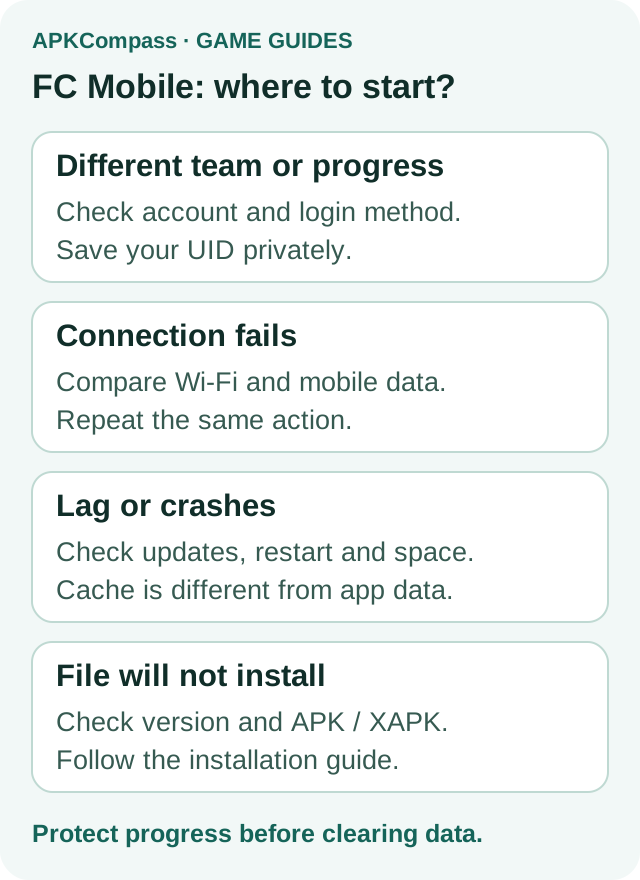
Failed login, a different team, disconnected matches and stuttering animation need different checks. Start with one event you can describe: the last screen that opened successfully, your next action and the message shown. Do not delete the game just because everything feels like lag.
If the team or progress is wrong after login, check the account. If menus respond but the connection drops, start with the network. If menus and matches both stutter, check the device. If the file cannot be installed, check its version and format. These categories help choose a first step; symptoms alone do not prove the cause.
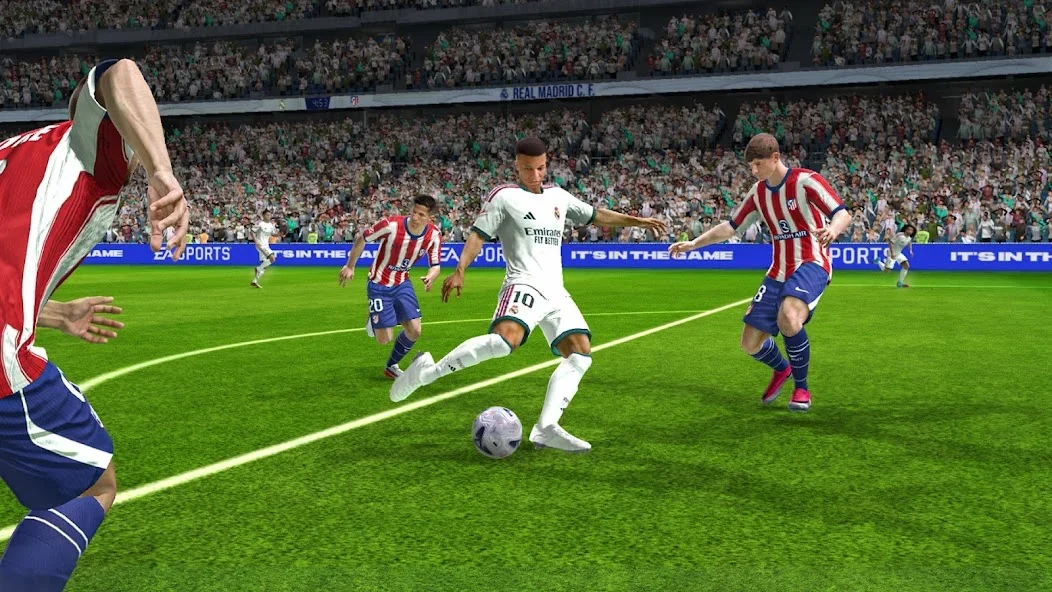
App screenshots
Protect progress and check the account in use
If the game still opens, go to Settings → Account Management → Link Accounts. Android options include EA Account and Google Play. Check that the destination account is correct and accessible: an account linked to FC Mobile cannot be unlinked. Guest progress is stored only on the device used to play.
Do not uninstall or choose Clear data while guest progress remains unlinked. If a different team appears, note the previous login method and currently active account; do not rush to link the new team to another account. Linking protects access to progress but does not fix a network problem by itself.
If you can still sign in, save your UID privately from the top-right corner of Settings. Use it for account support, not a public comment. If the game will not open at all, continue with checks that do not erase data.
For connection failures, compare one thing at a time
Close and reopen the game, check the phone's date and time, and try your normal connection if you previously used a VPN. Compare Wi-Fi with mobile data that has an adequate signal. Repeat the test on the same screen to make the comparison useful.
An example report format is: at [time] WIB (UTC+7), logging in with [method], Wi-Fi stopped at [screen/message], while mobile data reached [screen]. This is a reporting template, not our test result. Fill it with what happened on your phone.
- Choose one action to compare, such as opening the main screen after login. Record the Wi-Fi result.
- Switch to mobile data, repeat the same action and record the result. Watch your allowance if the game requests extra downloads.
- If only one network fails, focus the report on that difference. Do not change accounts or delete the game at the same time.
- If both fail with the same message, save the time and error and check official service announcements. Two failed attempts do not establish that the server is down.
For lag or crashes, check the device
Check for game and Android updates, close other apps and restart the phone. Retry the action that failed. If the game now opens, record that change before doing anything else.
Check free space under Settings → Storage. To remove temporary files, find FC Mobile in the Apps list and choose Clear cache in its storage settings. Menu names vary. Clear storage or Clear data erases app data and is not the same button as Clear cache.
The minimum Android version is not FC Mobile's only requirement. GPU support and FPS options also depend on the device. If graphics settings are available, try lower settings under comparable game conditions. A missing high-FPS option does not automatically mean the download is damaged.
Make your observations specific: menus still stutter after a restart, or a particular match crashes after several minutes. A smooth menu alone does not prove a fix if the original problem occurred during matches.
For installation problems, check version, format and package
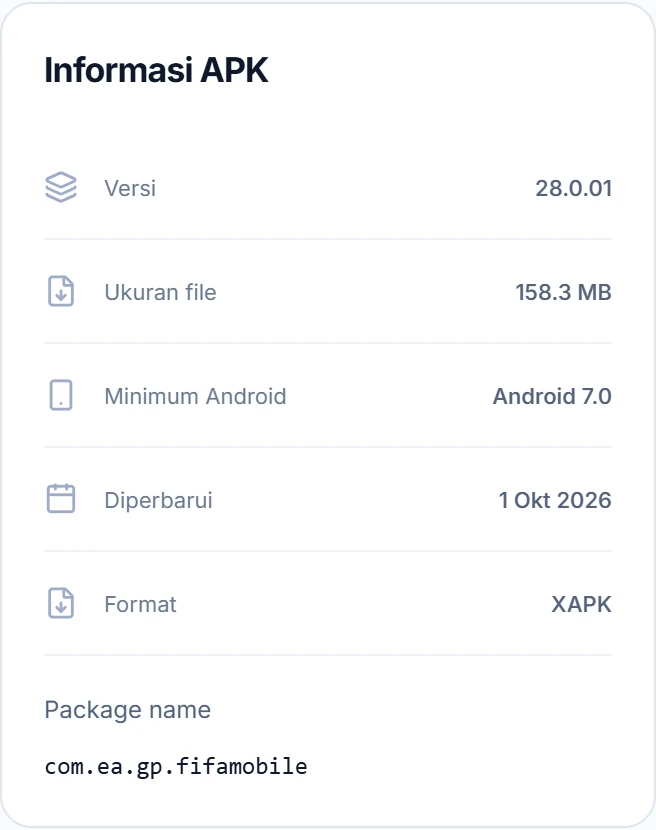
When available, use the FC Mobile card above to open its APK details. The APK information panel shows version, size, minimum Android, format and package name. This guide refers to com.ea.gp.fifamobile. Match the reported file to the version you actually downloaded.
The screenshot below shows an XAPK example. Do not rename the extension to APK; follow the format-specific installation instructions on the download page. If Android rejects installation, open the installation troubleshooting guide under Related guides. If the game opens but login fails, return to account or connection checks.
The pictured version records the catalog when this guide was updated. The app card and detail page use current catalog data, making them the better place to check today's file availability.
To install an XAPK, use VInstall: install the installer's APK first, then use Normal mode → Select File → Install for your completed XAPK download. Do not rename its extension to .apk. Full steps and compatibility limits.
Separate account support from download reports
For FC Mobile account help, open Settings and then Customer Service in the game. If you cannot access the game, use EA Help and have your saved UID ready. APKCompass cannot restore accounts or change game progress.
For a catalog file that fails to download or install, use Report a problem on the APK page. Include phone model, Android version, game version, format, time in WIB (UTC+7), failing stage, complete message and comparison results. Do not send passwords or OTP codes.
- Write the steps that reproduce the issue, such as open game → choose login method → a specific message appears.
- Separate each result: network A, network B, restart or a setting change. Do not only write that you tried everything.
- Stop once you have consistent symptoms and send that information to the appropriate support team. Repeated downloads do not explain an account issue.