
Create and check automatic captions in CapCut on Android
Captions make speech easier to follow when a video plays without sound.
Apps and games in this article
Check the version, file format and installation steps before downloading.
 CapCutAPK · v19.7.0 · 306.6 MBView details and downloads →
Before you begin
Captions make speech easier to follow when a video plays without sound. Automatic recognition still needs review, especially for names, technical words and noisy recordings. Work on a copy of the project before making extensive caption changes.
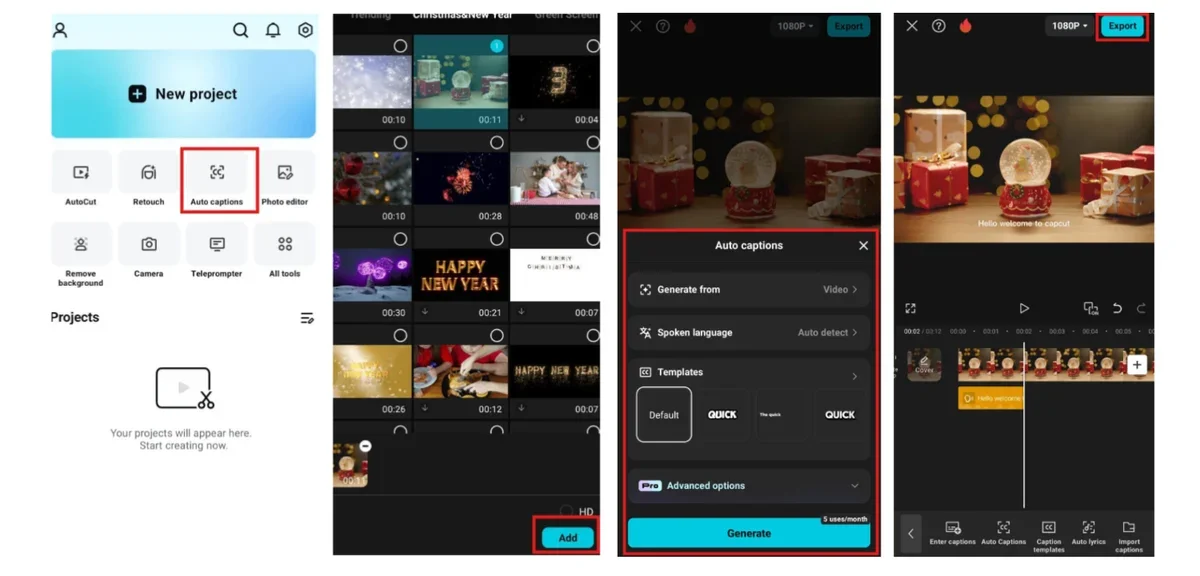
App screenshots
Follow these steps
Use a new CapCut project with footage you own. Grant access only to the media needed and keep the original video. Select a clip on the timeline to see which tools apply to it before editing.
- Open the intended CapCut project and make sure the timeline contains the speech you want captioned. Remove unused clips before generating captions for the sequence.
- Open the text or captions tools and choose automatic captions if available. Select the appropriate spoken language and wait for the generated text to appear.
- Play each caption with its corresponding audio. Correct names, punctuation and misheard words, and adjust timing when a caption appears too early or stays too long.
- Preview the complete video at a readable size. Keep captions clear of important imagery and review the exported file rather than only the editing preview.
Check the result
Check every caption before publishing. A plausible sentence can still misrepresent the speaker. If recognition is poor, correct the wording manually or improve the source audio; changing font size will not fix a transcription error.
Some CapCut features or assets may require an account, connection or paid plan. Check pricing indicators before exporting. A higher output resolution does not automatically add detail missing from the original recording.