
Create a Google Photos shared album and review access
A shared album is useful for a trip or family occasion when participants need the same collection.
Before you begin
A shared album is useful for a trip or family occasion when participants need the same collection. Review the selected photos and sharing controls first so private images or unintended participants are not included with the group.
Follow these steps
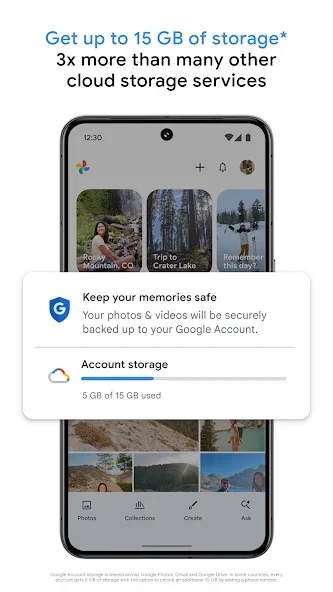
Check the profile picture and account address in Google Photos before changing backup or sharing albums. Photos shown in the app may come from the device or the account. Understand where they are stored before deleting or moving important files.
- Open Google Photos on the intended account and create an album. Choose a clear title and add only the photos and videos meant for this group.
- Open the album’s sharing options and select the intended recipients or sharing method. Read how link sharing works before distributing an album link.
- Review collaboration and other available album controls. Decide whether other participants should be able to add media rather than leaving that decision to chance.
- Check the shared album after sending it. Revisit participants and link access when the occasion is over or the intended audience changes.
Check the result
Turning off access later cannot retract copies someone already saved. Avoid including sensitive documents or account details in a shared album. If the wrong image was shared, remove it and review the rest of the album carefully.
Google account storage and device space are different. Backups can stop when account storage is full or the connection fails. Do not delete photos to experiment with settings before checking that you can reopen their saved copies.