
Check document layouts in Collabora Office for Android
Check tables, images and page breaks when opening a document on Android. Work on a copy and verify the final layout before sharing the file.
Apps and games in this article
Check the version, file format and installation steps before downloading.
 Collabora OfficeXAPK · v26.04.3.1 · 195.6 MBView details and downloads →
Purpose and preparation
When opening a document on a phone, inspect areas whose appearance may change, such as tables, images and page breaks. Try edits on a copy before changing the main file. The aim is to confirm that the content remains complete and that changes can be traced.
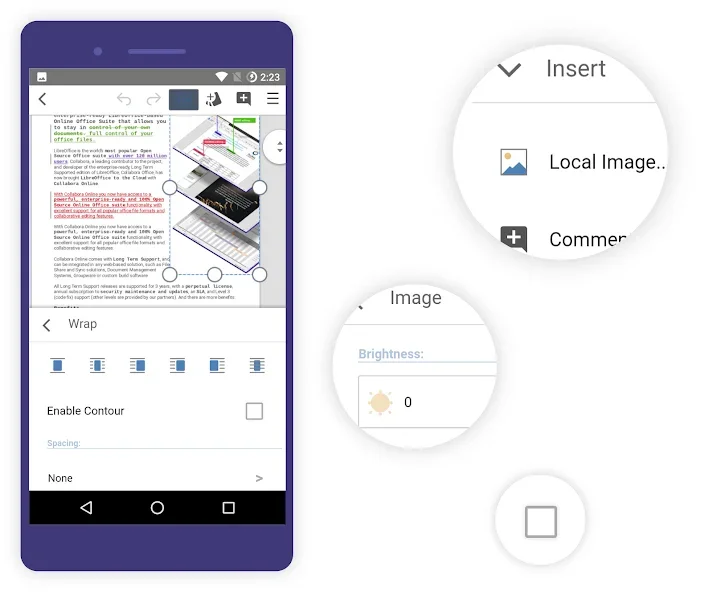
App screenshots
Suggested steps
Save a copy before editing important documents, particularly those with tables or complex layouts. Check the final result in the destination application before sharing it.
- Save a copy under a different name before trying edits on your Android device.
- Open important areas: the first page, wide tables, images and the final page. Look for content that is no longer visible.
- Make one small change, save the copy, then reopen it to confirm that the change was saved as expected.
- If you plan to share the document, check it on the receiving device or application before sending the final version.
Check the result before continuing
Content and layout need separate checks. Text may still be present without appearing in the intended position. Note any differences and avoid repeatedly overwriting the main file before you know which change caused the layout to shift.
Format support does not mean that every font, formula or layout will appear exactly as it did in the original desktop application.