
Archive a Google Keep note without deleting its contents
Completed notes can leave the main screen without being discarded. Archive is useful for information you may need again. Distinguish Archive from Delete before reorganizing many notes so that older working…
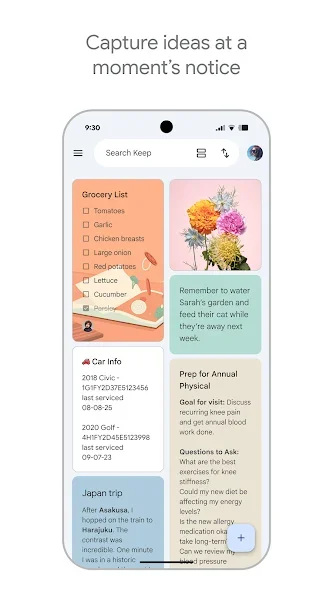
Before you begin
Completed notes can leave the main screen without being discarded. Archive is useful for information you may need again. Distinguish Archive from Delete before reorganizing many notes so that older working material is not lost by mistake.
Check the active Google account in Keep before creating or changing a note. Give it a title that describes its contents rather than only a date or the word note. Read important text after typing to catch incorrect numbers and names. Personal and shared notes need different care because people with access may see changes to shared contents.
Follow these steps
Follow this sequence in the Android app.
- Open one completed note and reread its contents. If you want to keep the information, choose Archive at the top right rather than Delete from the action menu.
- Open Keep's menu and choose Archive to inspect the moved note. Try a single example before archiving a larger group so you recognize where retained notes will be found.
- To return it to the main screen, open the note from Archive and choose Unarchive. Check its title in the main list again before reorganizing any other notes.
- If you used Delete instead, promptly inspect Trash. Open the note while it is still there and choose Restore. Recovery is available for seven days after the note was deleted.
Check the result
Emptying Trash permanently removes its contents. Do not use that action merely to tidy the main screen. Deleting a shared note you own also affects collaborators; choose archiving when the intention is only to reduce clutter in your personal list.