
Send a file with Quick Share from Files by Google
Quick Share transfers files to a nearby device without adding them to a conversation. Prepare both devices and make the recipient's name recognizable. Start with one small file to verify the connection and…
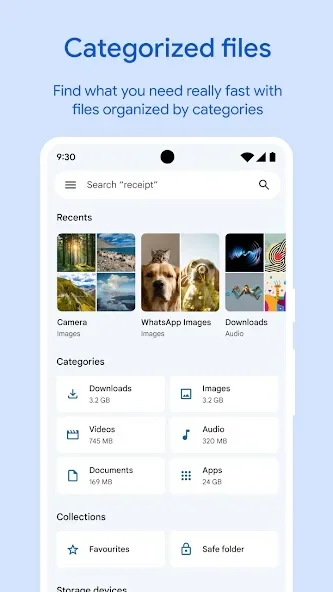
Before you begin
Quick Share transfers files to a nearby device without adding them to a conversation. Prepare both devices and make the recipient's name recognizable. Start with one small file to verify the connection and destination before transferring a larger collection.
Check a file's name, type and location before choosing an action in Files by Google. Similarly named documents may contain different versions, so inspect a preview when unsure. Avoid selecting everything when you need only one result. For important documents, verify that an accessible copy exists before deleting or moving the only file you currently hold.
Follow these steps
Follow this sequence in the Android app.
- On the sending device, open Files by Google and choose Quick Share. Select files to send, then mark one test file that the intended receiving device is allowed to obtain.
- Keep the recipient nearby with its screen unlocked and its sharing visibility configured appropriately. Check the device name carefully before selecting it from the list of nearby destinations.
- Ask the recipient to inspect the sender and offered content before accepting. Transfers between your own devices using the same Google account may be accepted automatically instead of requiring another confirmation.
- Wait for completion and open the received file to inspect its contents. To cancel an ongoing transfer, tap the destination device again and check that the transfer status changes.
Check the result
Do not choose a device merely because it appears first. Another nearby phone may have a similar name. Quick Share controls can differ by device, so use the options actually displayed and perform a small trial before moving important documents in bulk.