
Put private files in Files by Google's Safe folder
Safe folder restricts access to selected files using a PIN or pattern. Prepare a lock you can remember before moving important documents. The feature hides files from ordinary browsing, but it is not a…
Before you begin
Safe folder restricts access to selected files using a PIN or pattern. Prepare a lock you can remember before moving important documents. The feature hides files from ordinary browsing, but it is not a replacement for a separately accessible backup.
Check a file's name, type and location before choosing an action in Files by Google. Similarly named documents may contain different versions, so inspect a preview when unsure. Avoid selecting everything when you need only one result. For important documents, verify that an accessible copy exists before deleting or moving the only file you currently hold.
Follow these steps
Follow this sequence in the Android app.
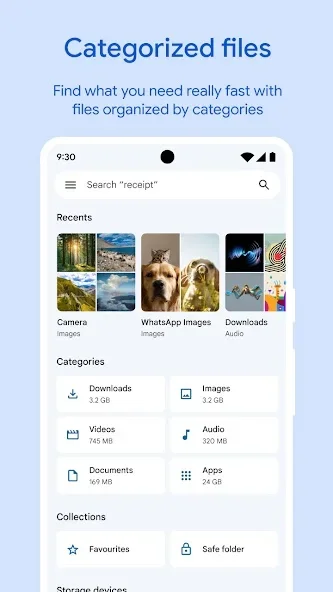
- Open Files by Google and find Safe folder under Collections. Choose a PIN or pattern, enter it and complete the confirmation so you know which lock has actually been saved.
- Select one test file that is not your only copy of an important document. Open More, choose Move to Safe folder and enter the PIN or pattern to complete the move.
- Return to Safe folder and inspect the test file. Confirm you can open the locked location with your chosen credentials before moving a larger collection of private documents into it.
- To remove a file from the protected location, select it inside Safe folder and choose Move out. Stay on that screen until the transfer finishes, then inspect its original storage location.
Check the result
Forgetting the PIN or pattern prevents access. Resetting Safe folder permanently loses its contents, so it is not a recovery method. Files inside are also unavailable through ordinary search or direct sharing from the locked folder; plan access before moving essential material.