
Organise separate projects into notebooks in Joplin
Use Joplin notebooks to separate active projects from reference material, with clear note titles and a structure that makes information easy to find.
Apps and games in this article
Check the version, file format and installation steps before downloading.
 JoplinAPK · v3.7.11 · 168.9 MBView details and downloads →
Purpose and preparation
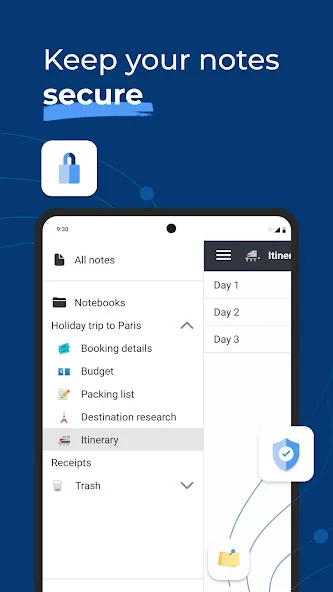
Notebooks can help separate ongoing work from reference material. Plan the structure around how you find information, rather than simply creating more folders. Start with one project and a few notes so you can easily reverse the changes if the structure does not suit you.
App screenshots
Suggested steps
Separate notes by project, then use tags for topics that span several projects. Finish synchronising before switching devices so the latest changes are included.
- Choose one project and identify the information you want to keep, such as decisions, tasks or reading material.
- Create a notebook for the project. Give its notes titles that explain their contents without requiring you to open each one.
- Put a few trial notes in the appropriate places, then try finding them again based on the work you want to do.
- Review the structure after using it several times. Combine groups that are too similar before creating many new notebooks.
Check the result before continuing
The structure works when you know where to save and find a note. If you use synchronisation, check another device before assuming that moved notes are visible everywhere. Make a backup before reorganising many notes or changing the storage service.
Synchronisation services require separate setup. Desktop features, including some plugins, are not always available in the same way on Android.