
Make a Google Drive file available offline on Android
Prepare the specific files you need before losing connectivity.
Before you begin
Prepare the specific files you need before losing connectivity. A file appearing in Drive does not mean its contents have been saved for offline access. Check account identity, storage and completion while a reliable connection is still available.
Follow these steps
Check the Google Drive account and destination folder before saving or sharing files. Give documents distinctive names, such as document type and activity date. Open the saved result to confirm it is the version you need.
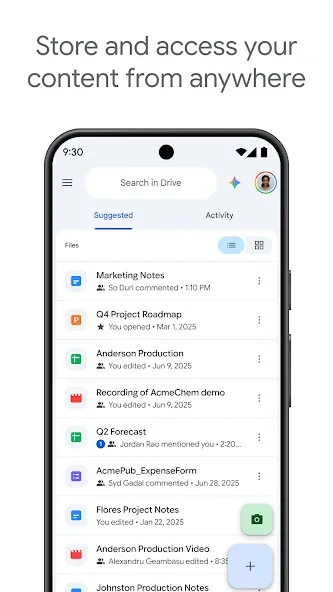
- Open Google Drive and locate the intended file. Check its name and latest contents before saving an offline copy of an outdated or similarly named document.
- Open the file menu and choose the available offline option if supported. Allow the app to finish preparing the file without interrupting the connection.
- Review the offline files area and confirm the item appears. Open the file to make sure its contents are usable, not just its listing or thumbnail.
- Check again before travel or a meeting. If the document changed after you prepared it, reconnect and confirm that the offline version contains the information you need.
Check the result
Offline behavior varies by file format and the app used to open it. Plan for those limits before depending on an interactive document. Keep enough device storage and do not clear app data just before you need the prepared files.
File access depends on the owner's permissions, active account and any organization policy for work or school accounts. Saving a link does not automatically grant access. Check the recipient's access before relying on a document for an important activity.