
Inspect an archive before extracting it with ZArchiver
Check the files inside an archive and prepare a destination folder before extraction, so the results stay separate from your other downloads.
Apps and games in this article
Check the version, file format and installation steps before downloading.
 ZArchiverAPK · v1.0.10 · 4.9 MBView details and downloads →
Purpose and preparation
Before extracting an archive, check its file names and prepare an output folder. This helps prevent extracted documents from getting mixed up with other downloads. Use only archives you were expecting from senders you recognise.
App screenshots
Suggested steps
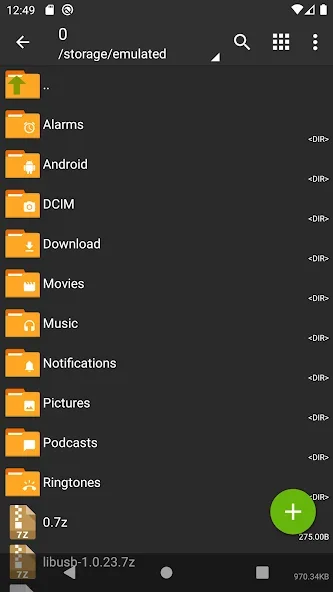
Inspect the archive before extraction and choose a location with enough free space. For multipart archives, place all parts in the same folder.
- Find the archive in your device storage and open its file list without immediately running any of the files.
- Check whether it contains one main folder or many separate files. Choose a dedicated output folder so the extracted contents are easy to inspect.
- Extract the archive into that destination. If a password is requested, ask the archive's creator for the correct one.
- After extraction, compare the folder's contents with the list you inspected earlier. Open only documents whose file types you understand.
Check the result before continuing
If extraction fails, note the error message and check whether the download completed. Renaming an archive's extension does not repair incomplete data. Keep the original copy until the extracted files can be opened, especially for important documents that would be difficult to obtain again.
An encrypted archive still requires the correct password. Changing an extension or extracting an app package does not guarantee that the package can be installed.