
Find a note and search inside it in Google Keep
Scrolling through every note becomes slow as a collection grows. Start with a distinctive word or an existing label, then search within the note if it is long. This separates locating the right note from…
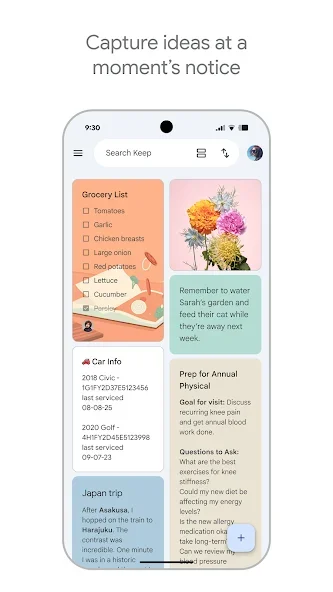
Before you begin
Scrolling through every note becomes slow as a collection grows. Start with a distinctive word or an existing label, then search within the note if it is long. This separates locating the right note from finding a particular passage inside it.
Check the active Google account in Keep before creating or changing a note. Give it a title that describes its contents rather than only a date or the word note. Read important text after typing to catch incorrect numbers and names. Personal and shared notes need different care because people with access may see changes to shared contents.
Follow these steps
Follow this sequence in the Android app.
- Open Keep and tap Search. Enter a distinctive word from the title or contents instead of a general term such as work that may occur in many unrelated notes.
- If too many results appear, use an available filter such as label, note type or color. Choose something you actually used so the filter does not hide the intended note.
- Open a suitable result and inspect its title and opening context. For a long note, open More and choose Find in note to restrict the next search to that note's contents.
- Enter the target word and use the arrows to move between matches. Gray arrows indicate no match; check the spelling or try another recognizable term before abandoning the search.
Check the result
Similar results are not necessarily the newest version. Read the contents before reusing a number or instruction. Searching text inside photos has language limitations, so do not assume writing in every saved image can be located in exactly the same way.