
Download a Google Maps area before going offline
Download the area you need while a reliable connection is available.
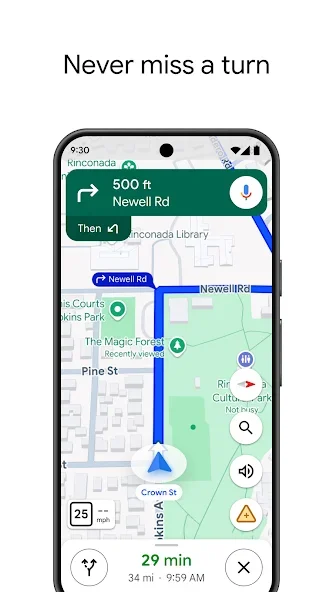
Before you begin
Download the area you need while a reliable connection is available. An offline map helps with supported map functions, but it does not make every live feature or travel mode available without internet access.
Follow these steps
Use the intended Google Maps account and check location permission when you need your current position. Match the place name, address and map marker before saving it or starting a journey; different places can share similar names.
- While online, open Google Maps and select your profile picture. Go to Offline maps and choose the option to select your own map.
- Choose an offline area and adjust its boundary to cover the planned route and nearby alternatives. Review the estimated download size and available device storage.
- Start the download on a stable connection and wait for completion. Open the offline maps list to confirm the area is stored rather than still pending.
- Temporarily turn off the connection and try finding your destination in the saved area. Reconnect after the check and keep the destination address as a separate note.
Check the result
Offline driving directions require a route covered by the downloaded area. Do not expect live traffic, alternative routes or public transport, walking and cycling directions while offline. If the area cannot be downloaded, prepare another way to read addresses and directions.
Map information and road conditions can change. Check local directions while travelling and configure the app before driving. Some features require internet, and offline-map availability differs between regions.