
Compare photo settings in Open Camera
Use a stable subject and lighting to compare Open Camera settings. Change one control at a time and review the same areas in each photograph.
Apps and games in this article
Check the version, file format and installation steps before downloading.
 Open CameraAPK · v1.56.2 · 4.7 MBView details and downloads →
Purpose and preparation
Comparing camera settings requires a relatively constant subject and lighting. If the location, angle and settings all change together, it is difficult to identify why the results differ. Set up one simple scene to learn which controls your device provides.
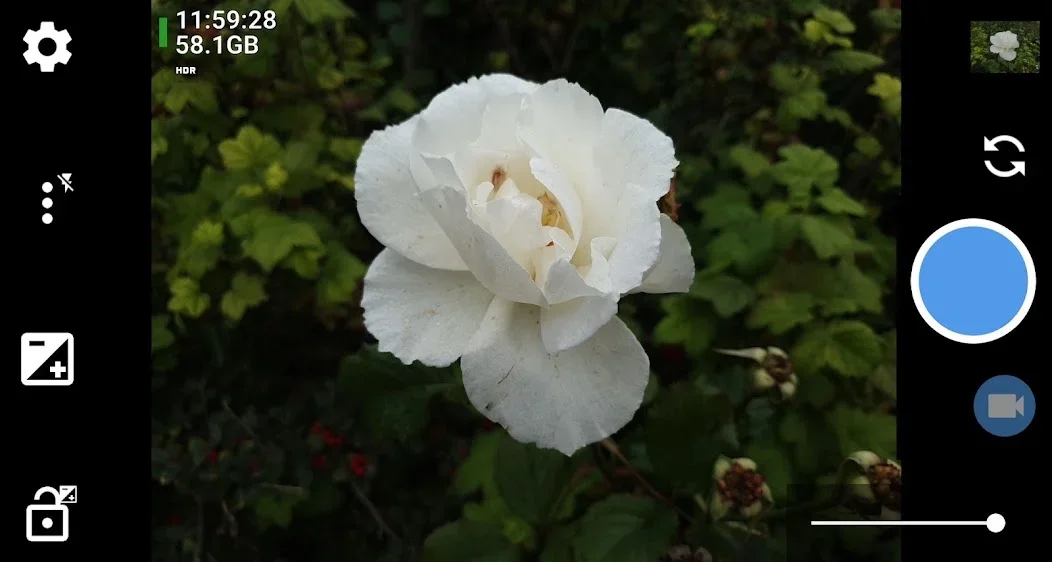
App screenshots
Suggested steps
Start in automatic mode, then change one setting to understand its effect. Grid lines and exposure lock can help with composition when the lighting is uneven.
- Keep the phone in a stable position and choose a subject with both bright and dark areas so differences are easy to see.
- Take a reference photo before changing a setting. Keep that photo throughout the comparison.
- Change one available control, such as exposure compensation, then take another photo from the same position.
- Compare detail and brightness in the same parts of the subject. Restore the original setting before trying the next change.
Check the result before continuing
Choose settings to suit the scene, rather than assuming every control needs to be enabled. If an option is unavailable, do not assume that reinstalling the app will add it. Camera controls depend on the device's capabilities and the camera interface provided by the system.
Not every phone provides all manual controls, RAW, HDR or video modes. Those limits depend on the hardware and camera API.