
Check Google Photos backup status and the destination account
Before replacing a phone or deleting photos, check the actual backup status in Google Photos.
Before you begin
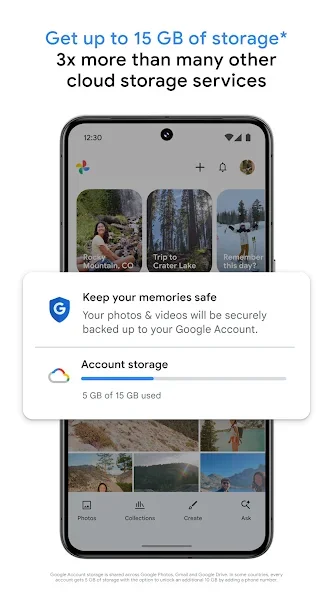
Before replacing a phone or deleting photos, check the actual backup status in Google Photos. Signing in alone does not confirm that every item is uploaded, and the selected Google account determines where backed-up items are stored.
Follow these steps
Check the profile picture and account address in Google Photos before changing backup or sharing albums. Photos shown in the app may come from the device or the account. Understand where they are stored before deleting or moving important files.
- Open Google Photos and inspect the profile menu. Confirm the displayed Google account is the one you intend to use for your photo backup.
- Open Photos settings and Backup. Review whether backup is enabled, the selected account and any storage or connection warnings that could interrupt uploads.
- Inspect the backup progress and check important individual photos or videos. Allow pending uploads to finish before treating the library as safely stored elsewhere.
- Confirm important items can be opened from the intended account on another session or device. Compare the actual media rather than relying only on a thumbnail.
Check the result
Backups and deletion controls have different effects. Do not delete important media to solve a storage warning before understanding which copies will be removed. Keep an additional copy of irreplaceable photos when you need independent recovery.
Google account storage and device space are different. Backups can stop when account storage is full or the connection fails. Do not delete photos to experiment with settings before checking that you can reopen their saved copies.